Some links in this guide are affiliate links. We may earn a commission at no extra cost to you.
Quick answer
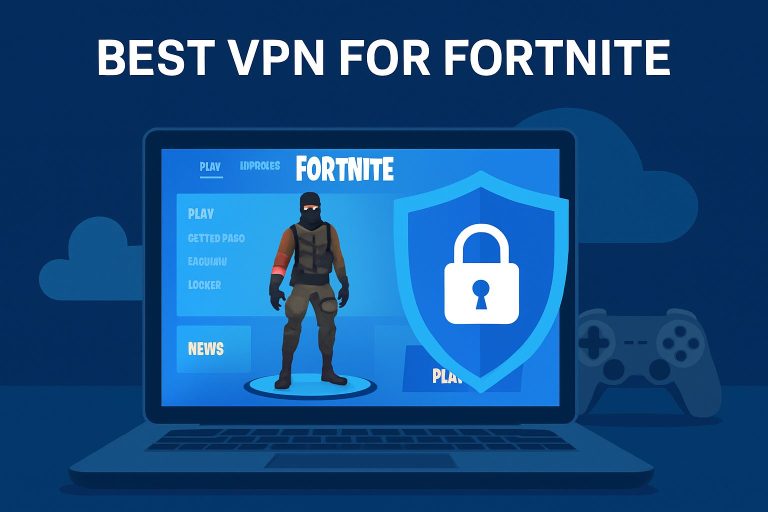
NordVPN is the best VPN for Fortnite for most players, particularly if you want to test alternative network routes when your normal ISP path produces unstable latency, packet loss, or poor matchmaking connectivity. ExpressVPN is the more interesting option when fast reconnection and simple protocol handling matter, while Surfshark makes sense if Fortnite is played across several PCs, consoles, and mobile devices.
At a glance
See the full comparisonBest overall
NordVPN
NordLynx is well suited to testing low-overhead routes to nearby Fortnite regions
Stable game routing
ExpressVPN
Lightway makes it easy to test alternate VPN routes without extensive protocol tuning
Multiple gaming devices
Surfshark
Useful when Fortnite is played across several PCs, phones, tablets, or console-connected networks
The important limitation is that a VPN does not automatically lower Fortnite ping. Your latency depends on the physical distance to Epic’s game infrastructure and the route your packets take to reach it. A VPN adds another network hop, so it can increase ping when your existing ISP route is already efficient. It becomes useful when the VPN provides a cleaner route around congestion, packet loss, or inefficient peering between your ISP and Fortnite’s servers.
On this page 18 sections
Best VPNs for Fortnite compared
| VPN | Best Fortnite use case | What makes it relevant | Rank |
|---|---|---|---|
| NordVPN | Best overall | NordLynx is well suited to testing low-overhead routes to nearby Fortnite regions | #1 |
| ExpressVPN | Stable game routing | Lightway makes it easy to test alternate VPN routes without extensive protocol tuning | #2 |
| Surfshark | Multiple gaming devices | Useful when Fortnite is played across several PCs, phones, tablets, or console-connected networks | #3 |
| ProtonVPN | Diagnosing unstable routes | Good option for comparing multiple nearby endpoints when packet loss varies by route | #4 |
| Private Internet Access | Protocol and routing control | Useful for players who want more control while isolating Fortnite connectivity problems | #5 |
| CyberGhost | Simple Fortnite testing | Straightforward choice for testing whether a nearby VPN route improves an unstable ISP path | #6 |
| IPVanish | Whole gaming setup | Best suited to households that want one VPN service across multiple gaming devices | #7 |
Why Fortnite ping behaves differently behind a VPN
Fortnite does not communicate with one universal server. Matchmaking places players onto regional infrastructure, and the latency you experience depends on the complete network path between your device and the Fortnite server handling the match.
That gives Fortnite players several different variables:
- Physical distance: the farther your packets must travel, the higher the minimum possible latency.
- ISP routing: your provider decides how traffic leaves its network and reaches upstream networks.
- Peering: inefficient interconnections can create a longer route than geography alone would suggest.
- Congestion: overloaded links can create packet loss, jitter, or sudden ping spikes.
Suppose Fortnite normally shows 30 ms to your nearest region. Connecting to a VPN server hundreds of kilometers away will usually make that worse because traffic now has to reach the VPN server before continuing toward Fortnite.
The useful scenario is different. If your ISP takes an inefficient or congested route toward Fortnite infrastructure, a nearby VPN endpoint can move your traffic onto another upstream network earlier. In that case, the added VPN hop can be outweighed by the cleaner route after it.
This is why the best Fortnite VPN should not be selected by asking which provider has the largest server count. Low-overhead protocols, nearby endpoints, stable routing, and the ability to test several paths are more relevant.
1. NordVPN – best VPN for Fortnite overall

NordVPN takes first place because NordLynx is a sensible starting point when the objective is to test whether Fortnite performs better over an alternative network path without introducing excessive protocol overhead.
For Fortnite, we would begin with a VPN endpoint geographically close to the player, not a server near an arbitrary foreign location. The goal is to alter the upstream route while adding as little physical distance as possible.
That distinction matters particularly when troubleshooting variable Fortnite latency. A player seeing 25 ms during one match and repeated spikes above 100 ms during another may be dealing with congestion or route instability rather than simply being too far from the game server.
Connect to NordVPN, choose a nearby endpoint, launch Fortnite, and compare the in-game latency and packet-loss indicators with several matches played without the VPN. A consistently worse result means the direct ISP route is probably better. A consistently cleaner result suggests NordVPN is bypassing a weak segment of the normal path.
NordVPN is also useful when Fortnite is played from changing networks, such as a gaming laptop used at home, university accommodation, hotels, or temporary connections. The relevant benefit is being able to establish a predictable encrypted route before testing game performance rather than assuming every network reaches Epic through the same upstream providers.
Best fit: Fortnite players who want a fast, practical way to compare their ordinary ISP path with alternative nearby routes.
2. ExpressVPN – best for straightforward Fortnite route testing

ExpressVPN is a strong Fortnite choice when you want to experiment with alternate network paths without spending much time manually tuning the VPN itself.
Its Lightway protocol is particularly relevant to gaming because the practical Fortnite objective is simple: keep VPN overhead low enough that any improvement or deterioration you observe mainly reflects the changed route rather than an unnecessarily heavy tunnel configuration.
We would initially leave protocol selection on Automatic and test a nearby ExpressVPN location. Run several Fortnite matches rather than judging the result from the lobby or one short session because route conditions can change over time.
If Fortnite performs poorly with one endpoint, test another endpoint in the same broad geographic area before selecting a distant country. Two VPN servers located relatively close to you can still use different upstream routes toward Epic’s infrastructure.
ExpressVPN also makes sense on connections where Fortnite occasionally becomes unstable after the underlying network changes. A laptop switching from Ethernet to Wi-Fi or between different wireless networks forces the VPN client to rebuild its network path, and Lightway is designed around maintaining practical connectivity through those transitions.
Best fit: Fortnite players who want uncomplicated route testing and minimal manual VPN configuration.
3. Surfshark – best for Fortnite across multiple gaming devices

Surfshark becomes particularly interesting when Fortnite is only one part of a larger household gaming setup.
One player might run Fortnite directly on a Windows PC while another uses a laptop or mobile device. A console may also sit behind a router or shared computer connection carrying VPN traffic. In that environment, the practical requirement is less about one Fortnite installation and more about maintaining the same VPN option across the devices used for gaming.
For Fortnite itself, use the same methodology as with NordVPN: start nearby. WireGuard is the logical first protocol to test because the objective is to keep tunnel overhead low while determining whether Surfshark’s route is better than the ISP’s normal route.
Do not assume that connecting to a server in the same country as your selected Fortnite matchmaking region will automatically improve latency. Fortnite’s region selection and Surfshark’s VPN location represent different layers of the connection.
The relevant question is whether the complete route from your device through Surfshark and onward to Fortnite produces lower latency, lower jitter, or less packet loss than the direct connection.
Best fit: households and players using Fortnite on several devices who want one VPN service available across the wider gaming setup.
4. ProtonVPN – useful for troubleshooting inconsistent Fortnite routes

ProtonVPN is most interesting for Fortnite when your direct connection behaves inconsistently rather than simply having permanently high latency.
Imagine Fortnite normally sits around 35 ms but becomes erratic during certain periods, with visible packet loss or short freezes despite your local connection remaining otherwise functional. Connecting through a nearby ProtonVPN server gives you a second route to compare.
If the instability disappears repeatedly while the VPN is active, that is useful diagnostic information. It suggests the weak point may be somewhere along the normal ISP path rather than inside Fortnite itself or your local Wi-Fi.
Conversely, if ProtonVPN adds 15–30 ms and the same packet loss remains, the VPN is not fixing the relevant part of the route. There is little value in keeping it enabled merely because gaming VPNs are sometimes advertised as latency tools.
For consistent testing, avoid changing several things at once. Keep Fortnite’s matchmaking region unchanged, test the same local network, and change only the VPN route. That makes the results easier to interpret.
Best fit: players investigating Fortnite packet loss or ping instability that appears to be route-dependent.
5. Private Internet Access – best for Fortnite players who want routing control

Private Internet Access makes more sense for Fortnite players who want to experiment with how traffic is routed rather than simply pressing Connect and leaving every application behind the same VPN tunnel.
That can be useful during troubleshooting. Fortnite can be sent through the VPN route while another application remains outside it, allowing you to compare whether the game-specific path is the source of the problem without forcing your entire desktop workload through the same endpoint.
The same principle applies when Fortnite works normally without the VPN but suffers packet loss through one particular endpoint. Rather than changing graphics settings, reinstalling Epic Games Launcher, and modifying DNS settings simultaneously, first isolate the route.
PIA is therefore less about claiming the absolute lowest Fortnite ping and more about giving technically inclined players a controlled way to test network behavior.
Best fit: players who want granular control while diagnosing Fortnite connectivity and routing problems.
6. CyberGhost – good for simple Fortnite VPN testing

CyberGhost is best viewed as a straightforward option for players who want to answer one specific Fortnite question: does an alternative route improve the connection I already have?
Start with the nearest practical CyberGhost server and compare Fortnite’s in-game ping over multiple sessions. If your normal route is already efficient, CyberGhost will usually add some latency because traffic now travels through the VPN first.
The interesting result is when the opposite happens. If direct Fortnite traffic follows a poor ISP path while CyberGhost exits onto a better-connected upstream network, the VPN route can produce smoother latency or lower packet loss despite the extra tunnel stage.
This is particularly worth testing when problems appear at predictable times of day. Congestion can be path-specific, so a route that behaves normally in the afternoon may deteriorate during evening peak usage.
Best fit: Fortnite players who want a simple way to compare their direct route against a nearby VPN path.
7. IPVanish – useful when Fortnite is part of a wider gaming setup

IPVanish is more compelling when Fortnite is one element of a broader gaming and device environment rather than when the sole objective is shaving a few milliseconds from one PC.
A household might have Fortnite installed on a gaming desktop and laptop while also using the same VPN service for other devices. The purchasing decision then depends partly on device coverage while Fortnite performance still comes down to whether the selected VPN endpoint provides a useful network route.
For Fortnite, WireGuard is the sensible starting point. Choose a nearby endpoint, keep Fortnite’s matchmaking region unchanged, and compare several real matches.
We would rank IPVanish below NordVPN and ExpressVPN for a player whose only requirement is optimizing Fortnite routing, but it remains useful when the VPN needs to serve the rest of the gaming setup as well.
Best fit: players who want one VPN arrangement across several gaming devices while retaining the option to test alternate Fortnite routes.
Can a VPN actually lower your Fortnite ping?
Sometimes, but only when it improves the route.
Ping is primarily determined by distance and network routing. Encryption does not create a shortcut between your computer and Fortnite’s infrastructure.
A VPN can improve the result when your ISP’s normal route contains an inefficient or congested segment. The VPN changes the first part of the path and may place your traffic onto another backbone or peering relationship before it reaches Fortnite.
| Connection factor | Changed by a VPN? | Can affect Fortnite? |
|---|---|---|
| Physical distance to game server | No | Yes |
| ISP routing path | Yes | Yes |
| Upstream peering | Potentially | Yes |
| Local Wi-Fi interference | No | Yes |
This is why a Fortnite VPN test should always compare actual gameplay with and without the tunnel. A generic VPN speed test cannot tell you whether the route to the Fortnite server used for your matches has improved.
When a Fortnite VPN can reduce packet loss
Packet loss is one of the situations where an alternative route can matter more than headline ping.
If packets disappear on a congested or unstable segment between your ISP and Fortnite’s infrastructure, routing traffic through a nearby VPN may bypass that segment. You might see the average ping remain similar while the game feels substantially smoother because the connection stops producing severe spikes or lost packets.
The reverse is equally possible. If packet loss originates from your Wi-Fi connection, overloaded home router, damaged Ethernet cable, or local broadband link, sending the same traffic through a VPN does not remove the underlying problem.
A useful distinction is:
route-related packet loss = a VPN may help.
local network packet loss = changing the VPN route normally will not help.
This makes repeat testing important. If Fortnite loses packets both with and without several different VPN endpoints, investigate the local connection before continuing to switch servers.
Why selecting a distant VPN server usually makes Fortnite worse
VPN location is often misunderstood in gaming.
Suppose you are in Stockholm and normally connect to Fortnite infrastructure serving Europe. If you deliberately route your traffic through New York, every packet has to cross the Atlantic before it can continue toward its destination.
Even if the VPN connection itself is fast, physics now imposes a substantially longer path.
This is different from testing two nearby European VPN endpoints. One may connect into a backbone that reaches Fortnite efficiently while another follows a weaker route. The locations appear similar geographically, but their upstream paths can differ.
For lower Fortnite latency, start with the nearest VPN endpoint and expand outward only when testing shows a reason to do so.
Fortnite matchmaking region vs VPN server location
Fortnite’s matchmaking region and your VPN endpoint should not be treated as the same setting.
The VPN determines where your encrypted network tunnel exits onto the public internet. Fortnite determines which regional game infrastructure your session uses.
Choosing a VPN server in another country does not guarantee Fortnite will provide a lower-latency match there, and selecting an unnecessarily distant VPN endpoint can create a longer route before the game traffic even reaches Epic’s network.
If your objective is smooth gameplay, keep Fortnite’s matchmaking configuration focused on the region offering the lowest practical latency and use the VPN only to test alternative paths toward that region.
Changing both settings at the same time makes troubleshooting much harder because you no longer know whether the result came from the VPN route or the different Fortnite region.
Why Fortnite may show higher ping after you connect to a VPN
A higher ping after enabling the VPN is not evidence that something is broken.
If your ISP already has an efficient route toward Fortnite, the VPN necessarily introduces another stage:
- your device sends traffic to the VPN server;
- the VPN decrypts and forwards it;
- traffic continues from the VPN network toward Fortnite;
- responses return through the VPN before reaching you.
Even a fast protocol cannot remove the distance involved.
A small increase can therefore be completely normal. If Fortnite rises from 20 ms to 27 ms but remains stable, the tunnel may be functioning exactly as expected.
The VPN becomes unattractive for that connection if the direct route is both faster and equally stable.
What to do if Fortnite behaves differently with the VPN enabled
Fortnite ping increases
Connect to a VPN endpoint closer to your actual location. If ping remains consistently lower without the VPN, use the direct route for gaming. A VPN cannot improve a connection that already has a better path.
Fortnite ping is lower but occasionally spikes
Test another nearby endpoint from the same provider. Average latency and jitter are different metrics; a route with slightly lower average ping can still feel worse if it produces intermittent delays.
Fortnite shows packet loss
Compare the same connection without the VPN. If packet loss disappears only when using a specific VPN route, your normal ISP path may contain the problematic segment. If loss remains across both connections, investigate your local network.
Fortnite will not connect through one VPN server
Switch to another nearby VPN endpoint before changing Fortnite settings. If the next VPN server works immediately, the problem is more likely related to that particular route or endpoint than to the game installation.
The Epic Games Launcher works but matches feel unstable
Launcher connectivity and real-time Fortnite gameplay stress the network differently. Downloading updates successfully does not prove that the route has consistently low jitter or packet loss during a match.
Fortnite works on Ethernet but poorly on Wi-Fi
That points toward the local network rather than the upstream VPN route. Test a wired connection before assuming that another VPN endpoint will fix wireless interference or signal-quality problems.
How to test a VPN for Fortnite properly
The most useful Fortnite VPN comparison is controlled rather than anecdotal.
Play several matches without the VPN and record the approximate in-game ping, whether packet loss appears, and whether large latency spikes occur.
Then connect to the nearest suitable VPN endpoint and repeat the test without changing Fortnite’s matchmaking region or your local connection.
If necessary, test two or three nearby VPN servers. Do not jump between distant countries because that introduces an additional variable: physical distance.
A useful Fortnite result is not simply the lowest single ping number you see. Look for:
- similar or lower average latency;
- fewer large ping spikes;
- less packet loss;
- consistent behavior across multiple matches.
If the VPN improves none of those metrics, the direct connection is the better Fortnite route.
Which VPN should you choose for Fortnite?
For most players, NordVPN is the strongest overall choice because NordLynx and a broad selection of endpoints make it straightforward to test nearby alternative routes without adding unnecessary complexity.
Choose ExpressVPN if you prioritize straightforward protocol handling and want to move quickly between nearby routes while troubleshooting Fortnite latency.
Surfshark becomes more attractive when Fortnite is played across several devices, while ProtonVPN is a useful alternative when you are systematically investigating unstable routing or packet loss.
The deciding factor should still be measured Fortnite performance. If your direct ISP connection already gives you the lowest stable ping with no packet loss, adding a VPN is unlikely to make the game smoother.
Frequently asked questions
Can a VPN lower ping in Fortnite?
Yes, but only in specific routing situations. A VPN can lower Fortnite ping when your ISP’s normal path toward the game infrastructure is inefficient and the VPN provides a shorter or less congested upstream route. If your normal ISP route is already efficient, the VPN will usually add latency instead.
Which VPN server should I use for Fortnite?
Start with a VPN server close to your physical location. The objective is to change the network route without adding unnecessary distance. Test several nearby endpoints if your first result is poor because different VPN servers can use different upstream routes.
Can a VPN fix Fortnite packet loss?
It can help when the packet loss occurs somewhere along your ISP’s upstream route and the VPN bypasses that segment. It normally cannot fix packet loss caused by weak Wi-Fi, local congestion, router problems, or another issue inside your home network.
Why is my Fortnite ping higher with a VPN?
The VPN creates an additional network path between your device and Fortnite. If the direct ISP route was already efficient, the extra VPN hop adds distance and processing rather than improving anything. Try a closer VPN endpoint or play without the VPN.
Should I choose a VPN server near Fortnite’s matchmaking region?
Not automatically. Your VPN endpoint and Fortnite matchmaking region serve different purposes. Start with a VPN server near your actual location and test the resulting route toward your normal Fortnite region. Selecting a distant endpoint simply because it is geographically closer to a presumed game server can make the total path longer.
Can a VPN stop Fortnite ping spikes?
It can reduce spikes when those spikes are caused by congestion or instability on the normal upstream route. If the spikes originate from your Wi-Fi connection, local router, or broadband line, changing the external VPN route is unlikely to solve them.
Will using a VPN make Fortnite matchmaking faster?
Not necessarily. Matchmaking time depends on factors beyond network latency, including available players and the selected matchmaking environment. The practical network benefit of a Fortnite VPN is testing whether an alternative route provides more stable connectivity to the game infrastructure.
Is Ethernet still useful when playing Fortnite through a VPN?
Yes. A VPN changes the route after traffic leaves your device, but it does not eliminate local Wi-Fi interference or wireless packet loss. Using Ethernet removes one major source of local instability and makes VPN route comparisons easier to interpret.